Reference Guide
This guide explains the internal workflow of clinguin and all its concepts. The full workflow of the system is shown in the figure below. This image displays the Client-Server architecture, where communication occurs via an HTTP protocol using JSON. All components of the diagram are explained in detail in this guide and can be used as a reference. In this diagram, operations are marked in gray, states corresponding to sets of facts are depicted in green, and input files appear in red.
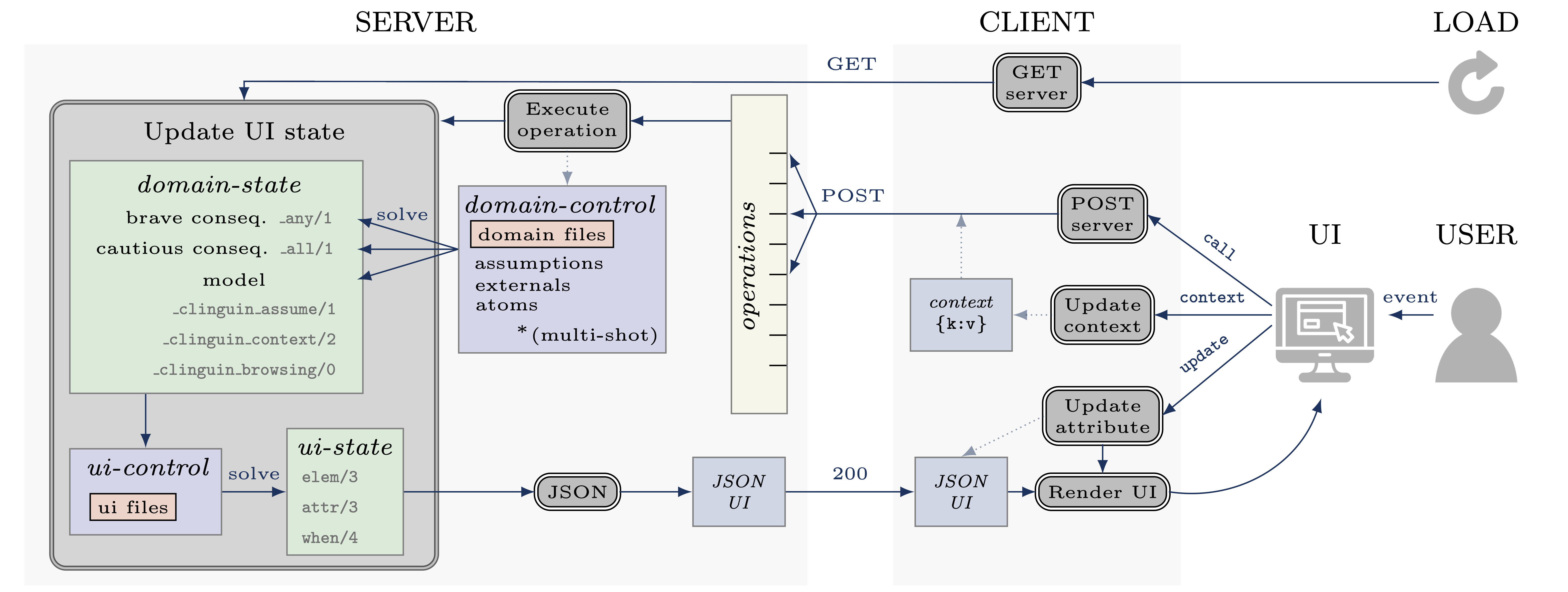
Structure
Server
The server is responsible for executing clingo and computing the information required to define the UI. This process unfolds in two distinct steps:
The domain-state is computed using the domain-specific encodings difined in the domain-files. These information include user-selected atoms, potential selections, and inferred atoms.
The server utilizes the provided UI encoding to generate the ui-state, defining the layout, style, and functionality of the interface.
To allow flexibility, further separation is done to have interchangeable functionalities.
Backend
The part of the server that defines the control and functionality, allowing users to interact with the clingo control in different ways. It offers the option to define and overwrite operations, as well as customize how the UI is updated and the contextual information in the domain-state. Users can create their own Backend to increase functionality (Creating your own backend).
We provide the following Backends with the system:
ClingoBackend: Basic clingo functionality using single-shot solving
ClingoMultishotBackend: clingo functionality using multi-shot solving
ClingraphBackend: ClingoMultishotBackend enhanced with the option to render and interact with Clingraph images
ExplanationBackend: ClingoMultishotBackend enhanced with explanation functionalities via Minimal Unsatisfiable Cores
ClingoDLBackend: ClingoMultishotBackend enhanced with clingod-dl
Client
The client is responsible for rendering the UI and responding to the user’s actions. When it is loaded, it requests the ui-state from the server. Upon receiving the ui-state in JSON format (JSON UI), the client utilizes a front-end language to render the corresponding UI.
To allow flexibility, further separation is done to have interchangeable UIs and functionalities.
Frontend
The part of the client that generates the layout based on the JSON UI and displays the UI. Users can create their own Frontend to have a different view (Creating Your Own Frontend).
We provide the following Frontends with the system:
AngularFrontend: UI using Angular to generate a web interface
TkinterFrontend: UI using Tkinter an OS-dependent interface
Input
domain-files
The domain-specific ASP encodings that will generate solutions to the problem (including the instance). These files will be used by the domain-control. They are provided when starting the server via the command line in argument
--domain-files.
ui-files
The encoding that will generate the ui-state using the domain-state as input. They are provided when starting the server via the command line in argument
--ui-files.
State
States are sets of ASP facts that are used to define diferent aspects of the system.
ui-state
A User Interface is defined in clinguin using the three predicates below. These facts are generated by calling clingo with the domain-state and the provided ui-files.
Note
The available element types, attributes, events, and actions will vary depending on the frontend. See the details for each front end in the Frontends section.
elem(ID, TYPE, PARENT)Elements define building blocks of the UI.
IDIdentifies the element for further references.
TYPEThe type of element (window,container,buttonetc).
PARENTThe id of the parent element. The identifierrootis used as the root element of the UI.
attr(ID, KEY, VALUE)Attributes define the style of the UI.
IDIdentifier of the element that the attribute will be set to.
KEYThe name of the attribute. Available attributes depend on the element type and the frontend.
VALUEThe value of the attribute.
when(ID, EVENT, ACTION, OPERATION)Actions define the interactivity of the UI. Multiple actions are allowed, as explained below.
IDIdentifier of the element that the user interacted with.
EVENTThe event that is being triggered, such asclick,hover,input, etc. Each element type allows different events.
ACTIONThe action performed.
callCalls the server to perform an operation.
updateUpdates the attribute of another element without any calls to the server.
contextUpdates the internal context that will be passed to the server on the following call actions. See Context for more details.
OPERATIONThe operation accounts for the information that the action requires for its execution.
ACTION=callThe operation corresponds to a function available in the Backends. The function call is represented as a predicate, for instanceadd_assumption(a)ornext_solution.
ACTION=updateThe operation will be a tuple of size three(ID', KEY, VALUE)whereID'is the identifier of the element whose value for attributeKEYwill be updated toVALUE. Notice thatID'might be different thanID.
ACTION=contextThe operation will be a tuple(KEY, VALUE), which will update the keyKEYin the context dictionary toVALUE. See the Context section for detail information on how to use the context.Multiple actions
If multiple occurrences of the predicate
whenare present for the same element and event. All of them will be executed. First, the updates will be performed, followed by context changes and finally server calls. Within each type of action, no order can be assured.In the case of multiple appearances of
call, a single call will be placed to the server with the information to execute all actions in any order.Example
When
button1is clicked, the server will receive the instruction to execute two operations: adding assumptionaand adding assumptionbin any order. For a more evolved example of this feature, see the jobshop example.when(button1, click, call, add_assumption(a)). when(button1, click, call, add_assumption(b)).To impose an order, the operation provided must be a tuple, in which case the order of execution is defined by the tuple.
Example
This example below will make sure that assumption
ais added before computing a solution.when(button1, click, call, (add_assumption(a), next_solution)).
domain-state
A set of facts defining the state of the domain, which will be used as input to the ui-files. These facts are generated by multiple domain-state constructors defined by the backend. Each backend will define its own domain-state constructors which can involve solve calls or any other information. The domain-state constructors can be found in Backends. In what follows we explain in detail the list of base constructors used in the ClingoMultishotBackend
The domain state of ClingoMultishotBackend will provide a model and some useful reasoning information; when creating a UI one usually needs to reason with what is still possibly part of the solution and what is necessarily in the solution. In ASP terms, we use the following brave and cautious reasoning to provide this information as explained below.
Model
The atoms of the first computed model are added directly to the domain-state. When the user is browsing the solutions, this model will change accordingly.
Brave consequences
Atoms that are in any stable models (Union) of the domain-control. These atoms are part of the domain-state enclosed in predicate
_any. We usually employ brave consequences to create elements where we want to provide the user with all the possible options. For instance, in a dropdown menu. By using brave consequences, we make sure that these selections lead to a valid answer.Example
Consider the following encoding, where either
p(1)orp(2)can be selected.1{p(1);p(2)}1.We have two stable models: {p(1)} and {p(2)}, so brave consequences (union) are {p(1), p(2)}. Therefore the following atoms will be added to the domain-state.
_any(p(1)).
_any(p(2)).
Cautious consequences
Atoms that are in all stable models (intersection) of the domain-control. These atoms are part of the domain-state enclosed in predicate
_all. We usually employ cautious consequences when we want to show the user any inferences done by the solver. For instance, the selected value of a dropdown menu. Naturally, assumptions made by the user will impact these consequences.Example
Consider the following encoding, where either
p(1)orp(2)can be selected.{p(1);p(2);p(3)}. :- p(1).We have one stable model: {p(1)}. Therefore the following atoms will be added to the domain-state.
_all(p(1))._clinguin_browsing/0
This constant is present when the user is browsing models, meaning that the
next()operation has been requested. It can be used to decide whether the UI must show the current model.Example
In the sudoku example, presented in section Basic Usage, the following lines define the selected value of a dropdown menu. When browsing is active, the value of the cell in the given model
sudoku(X,Y,V)defines the selected value, otherwise, a selected option will be defined only for values that are forced by the encoding_all(see domain-state).attr(dd(X,Y),selected,V):-_all(sudoku(X,Y,V)). attr(dd(X,Y),selected,V):-sudoku(X,Y,V), _clinguin_browsing._clinguin_unsat/0
This constant is present if the domain-control gave an unsatisfiable response.
_clinguin_assume/1
These atoms give information about what has been assumed by the user via the backend instructions.
Example
In the sudoku example, presented in section Basic Usage, the following lines define the color of the selected value of a dropdown menu. When the value was set by the user, which we can know if
_clinguin_assume(sudoku(X,Y,V))is part of the domain-state, then we show it using the primary color (blue). Otherwise, the value was inferred by the system and we show it using the info color (gray).attr(dd(X,Y),class,("text-primary")):-_clinguin_assume(sudoku(X,Y,V)). attr(dd(X,Y),class,("text-info")):-_all(sudoku(X,Y,V)), not _clinguin_assume(sudoku(X,Y,V))._clinguin_conext/2
These atoms provide access to the context information available in the frontend when the domain-state is generated. The first argument is the key, and the second one is the value. For more information check the Context section.
Control
domain-control
The Clingo control that will be handled by the Backend. It includes the domain files and can be accessed by the actions performed by the user. Most backends handle this control in a multi-shot fashion, where grounding is only done once (or on demand), and assumptions, as well as externals, are used to alter the solving. The domain-control is used to generate the domain-state.
Communication
Context
The context can be used to store information provided by the user before calling the server. For instance, it can store the input of a text field, or the value of a checkbox. Therefore, it is usefull for creating input forms within the UI. Internally, the context is represented by a dictionary in the client and it can be accesed in three ways.
Warning
Context information is only available for web frontends and not for Tkinter.
Updates
The context information is updated using predicate
whenas described above.Example
The context would be updated with the key-value pair (agree, true) when button1 is clicked.
when(button1, click, context, (agree, true)).To use a value imputed by the user, such as for text fields, the special constant
_valuewill hold the value of an input event.Example
when(textfield1, input, context, (t1_content, _value)).Substitution
The values of the context can be accessed for a direct substitution in the operation of a call. This is done with the special predicates
_context_value/1and_context_value_optional/1. The argument of these predicates is the key which will be substituted by the value before it is processed by the server. While_context_value/1will show an error in case there is no value for the provided key,_context_value_optional/1will leave the input optional, and in case there is no value present it is substitued by None.Example
Example from the ast example. The key selected_node is set open clicking on a node and then this information is sustituted on the next line when the server is called to add an atom, which yeilds operation
add_atom(show_children(X,true)))after the substitution, withXbeing the selected node.when(node(X), click, context, (selected_node, X)):- node(X). when(button1, click, call, add_atom(show_children(_context_value(selected_node),true))).Access
All calls to the server will include the context as an argument. All backends will have access to this dictionary and can use its values for any operation. The provadided backends include the context information as part of the domain-state via predicate
_clinguin_context(KEY,VALUE). Thus, giving the UI encoding access to the context at the time the call was made. Beware that changes in the context are not reflected in the UI encoding imidiatley, but only after calling the server and calculating the UI again.Warning
The context is erased after every call to the server.
Tip
If some of the context wants to be preserved between calls to the server, it can be done manually in the UI encoding by using the event
loadof thewindow. An example is provided below, which is used in the ast example.when(window, load, context, (selected_node, X)):- _clinguin_context(selected_node, X).
JSON UI
The ui-state is represented by a JSON to comunicate between client and server. This JSON is generated in a herachical fashion where each element apears with the following form.
{
    "id": <the id of the element>,
    "type": <the type of the element>,
    "parent": <the id of the partent element>,
    "attributes": <the list of associated attribute>
        [
            {
                "id": <the id of the element>,
                "key": <attribute key>,
                "value": <attribute value>
            },
            ...
        ],
    "when": <the list of associated actions>
        [
            {
                "id": <the id of the element>,
                "event": <the event>,
                "interaction_type": <the interaction type>,
                "policy": <the operation>
            }
        ],
    "children": <the list of all children>[]
}
Example
The following ui-state the corresponding JSON UI can be found below.
elem(w, window, root).
elem(b1, button, w).
attr(b1, label, "Button 1").
when(b1, click, call, next_solution).
{ "id":"root", "type":"root", "parent":"root", "attributes":[], "when":[], "children":[ { "id":"w", "type":"window", "parent":"root", "attributes":[], "when":[], "children":[ { "id":"b1", "type":"button", "parent":"w", "attributes":[ { "id":"b1", "key":"label", "value":"\"Button 1\"" } ], "when":[ { "id":"b1", "event":"click", "interaction_type":"call", "policy":"next_solution" } ], "children":[] } ] } ] }